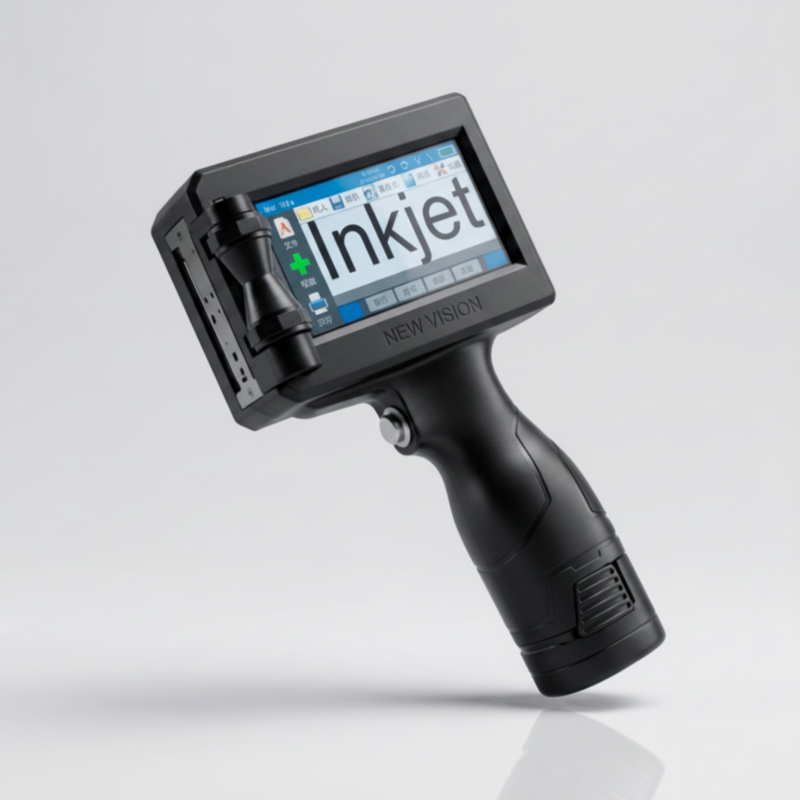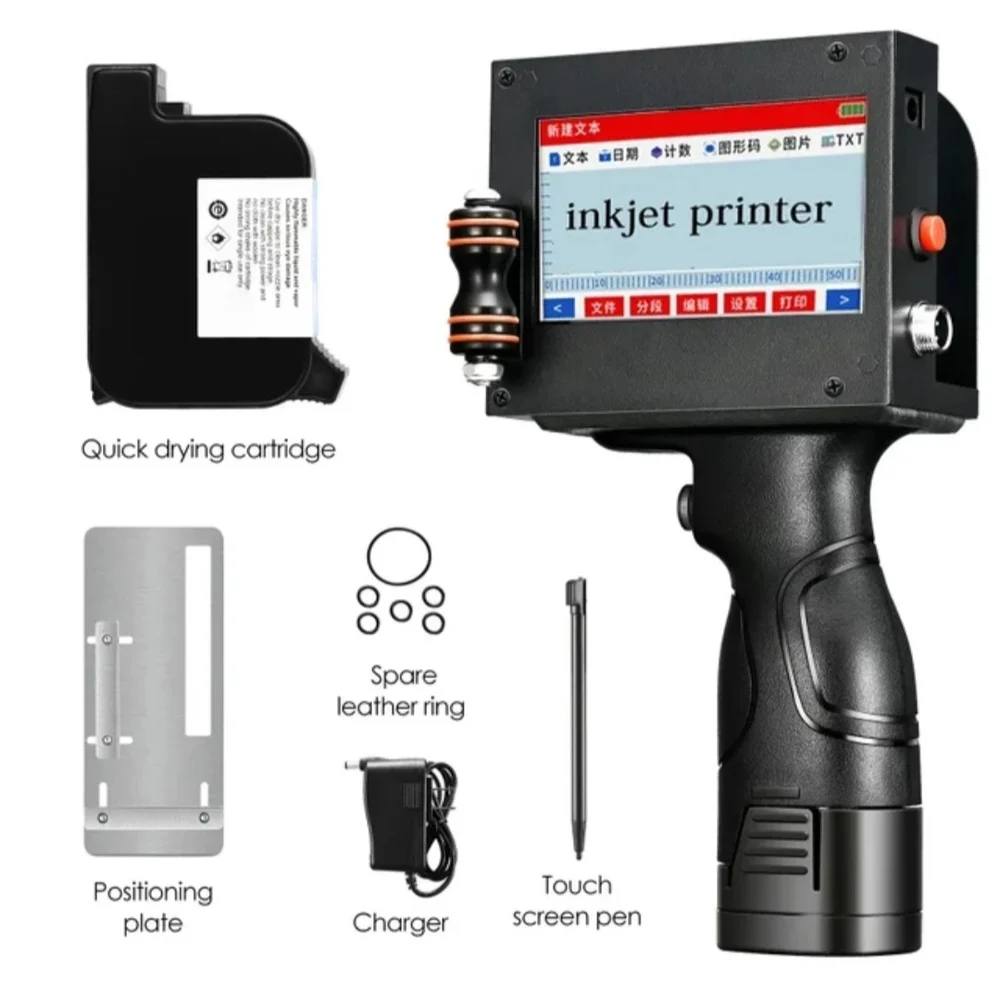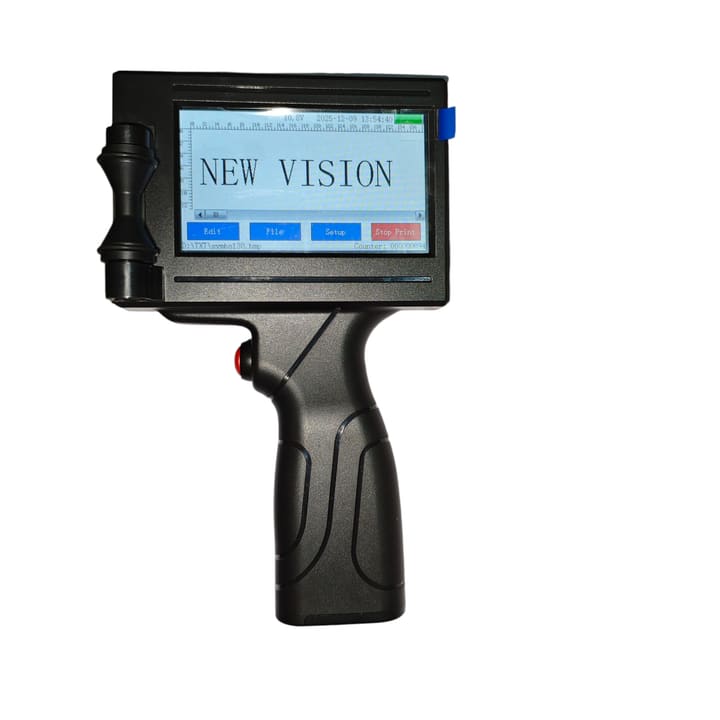
How to Print Expiry Dates on Plastic & Metal Using a Handheld Inkjet Printer
Printing clear expiry dates, batch codes and MRP on packaging is critical for compliance and brand trust. A USB handheld inkjet printer gives small and mid-size businesses an affordable way to achieve clean, high-resolution coding on plastic, metal and glass surfaces without investing in a full conveyor-based system.
Why Choose a Handheld Inkjet Printer?
Many growing brands start with rubber stamps or stickers for expiry and batch printing, but quickly run into quality, speed and consistency issues. A handheld inkjet printer solves these problems by combining portable design with industrial-grade thermal inkjet (TIJ) technology.
Instead of relying on manual stamping, operators simply glide the handheld printer over the product surface to apply crisp alphanumeric text, logos, barcodes or QR codes in one smooth motion. This is ideal for short runs, contract packaging and decentralized warehouses where flexibility is essential.
- Perfect for low to medium production volumes and mixed SKU batches.
- Works on cardboard cartons, plastic pouches, shrink sleeves, bottles and pipes.
- Can be used directly on the shop floor, at a packing table or beside a conveyor.
Advantages of a USB-Only Handheld Inkjet Printer
A USB handheld inkjet printer keeps your coding workflow simple and secure. You prepare your print designs on a computer, save them to a USB drive and plug it directly into the printer to load messages, logos and barcodes without any Wi‑Fi or Bluetooth configuration.
- Offline & secure: No dependency on internet, mobile apps or cloud accounts.
- Easy artwork import: Transfer logos, icons and custom fonts via USB flash drive.
- User-friendly editing: Use the built-in touchscreen to adjust font size, layout and print direction.
- High-quality output: Thermal inkjet technology delivers sharp, scannable barcodes and QR codes suitable for retail and export packaging.
For factories with IT restrictions or unstable network coverage, a USB-only model is often the most reliable and maintenance-friendly choice for daily batch coding.
Step-by-Step: Printing Expiry Dates on Plastic Bottles
Plastic bottles and pouches are among the most common—and trickiest—surfaces for expiry date printing. Follow these steps to get clean, permanent codes with a handheld inkjet printer.
- Prepare the surface: Make sure the plastic is dry and free from oil, dust or condensation. Wipe the area gently with a clean cloth if needed.
- Load your message: Create a template on your printer with product name, batch, MRP and an auto-updating date field. Save it and select it from the message list before printing.
- Position the printer: Hold the printer so that the printhead is parallel to the area you want to code. Keep the guiding wheels flat on the surface.
- Print with a smooth motion: Press the trigger once and slide the printer in a straight, steady line across the bottle. Avoid sudden changes in speed to prevent stretched or compressed text.
- Check adhesion: Allow the ink a few seconds to dry fully, then lightly rub the code with your finger. If it smudges, increase drying time or choose a faster-drying solvent ink cartridge compatible with plastics.
Once the ideal settings are found, you can repeat this process for hundreds of units per hour with consistent, legible results.
How to Print on Metal, Glass and Other Non-Porous Surfaces
Printing on metal lids, cans and glass jars requires special attention to ink type and surface preparation, because these materials are smooth and non-absorbent. Using a compatible quick-dry solvent ink is essential to achieve strong adhesion and abrasion resistance.
- Clean first: Remove oil, dust and coatings from the target area using a clean, lint-free cloth.
- Use suitable ink: Choose a cartridge formulated for metal, glass and glossy substrates.
- Maintain distance: Keep the printhead a few millimetres from the surface for best dot placement.
- Test and lock settings: Run a few test prints, fine-tune darkness and size, then save the configuration as a preset for that SKU.
With the right cartridge and technique, handheld printers can produce durable codes that withstand handling, transport and moderate moisture exposure on metal and glass packaging.
How to Choose the Right Handheld Inkjet Printer
When selecting a handheld inkjet printer for expiry date and batch coding, focus on factors that directly impact your day-to-day operations and running costs, not just the initial purchase price.
- Connectivity: USB-only models are ideal if you prefer offline, secure data transfer.
- Supported substrates: Confirm that the printer and cartridges support your main materials: cartons, plastics, metal, glass or pipes.
- Print height & resolution: Ensure the maximum character height and DPI meet your regulatory and branding needs.
- Battery life: Look for a unit designed for multi-hour shifts with quick charging and replaceable batteries if possible.
- Ease of use: A clear touchscreen interface and simple menu structure reduce operator training time and errors.
Matching these capabilities to your actual production workflow ensures your handheld inkjet printer becomes a long-term asset instead of a short-term workaround.
FAQs About Batch Coding with Portable Inkjet Printers
<h3>Can one handheld printer handle multiple product lines?</h3>
<p>
  Yes. You can create and store multiple message templates with different layouts, logos and date formats,
  then switch between them in seconds when changing SKUs or packaging types.
</p>

<h3>How many prints can I get from one ink cartridge?</h3>
<p>
  Actual yield depends on message size and coverage, but thermal inkjet cartridges typically support thousands
  of short expiry and batch codes before replacement.
</p>

<h3>Do I need technical staff to operate the printer?</h3>
<p>
  Most USB handheld inkjet printers are designed for operators on the line, with simple menus, templates and
  on-screen previews so you can start printing within minutes of basic training.
</p>